
Setting Up Zapier
Access Zapier and Create a Zap
-
Log into Zapier using your credentials: Access your Zapier dashboard.
-
Create a New Zap: Click the "Create Zap" button to start a new automation.

Choose the Action App
Clicking the "Create Zap" button will take you to this screen.
First, select "Trigger"

Select UNITH (1.2.0) as your action app.

Important: The UNITH Zap App is available by invitation only. You should have received an invitation to access it.
Need Access? If you haven’t received an invitation, please contact support@unith.ai for assistance.

Once you've selected UNITH as your action app, check the Set Up screen on the right will display UNITH as the chosen app.
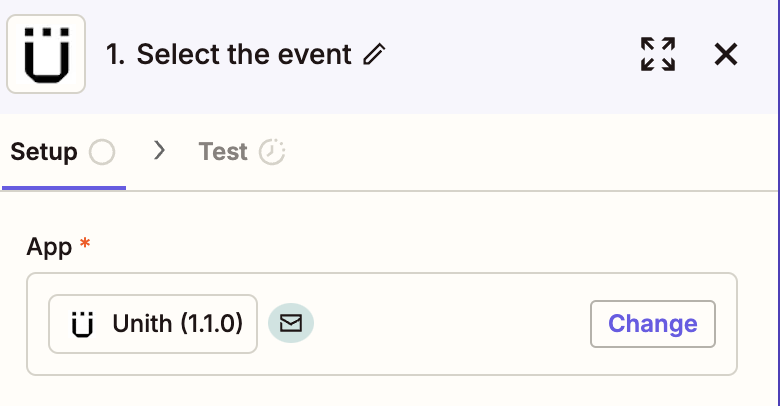
Select the Trigger Action Event
In the Set Up screen, choose the trigger action event for UNITH. By default, this will be: "New User".
This is the current default setting (more Trigger Events will be added soon)


To complete this part of the integration click Sign in on Account tab.

You will be prompted to input the following information:
Email Address – Use the same email address you set up in the UNITH Interface. Token Code – Enter the token code provided by UNITH for authentication.
Using UNITH API, You need to enter your email address that is registered with UNITH to get your token. For now, your sign-in token is included in the URL of the sign-in button in your email. You can retrieve it using GET/AUTH/ENTER.
You can generate a non-expiring token for your account. Please visit "secret key" documentation here.


Configure the connection to UNITH & Zapier Prompt
To start this part of the integration, create a Digital Human with a prompt, instructions to do so Digital Human Config For Zapier please see how to set the operation mode to "OC".
Your HEAD ID:
You can easily access all your Head Ids using the GET/head/all
While we’re working on making the Head ID easily accessible from the UNITH Interface, you can also temporarily locate it in the URL when editing a Digital Human in the dashboard.
Next, The Tool Name. This describes the action of the conversation. For example:
- If the tool saves user details to gather Google Sheets, a suitable name would be "SaveUserDetails" (same for HubSpot)
- A well-labeled tool helps users (and the Digital Human) understand its purpose and function assuminh it is the same tool name as referenced in the prompt.
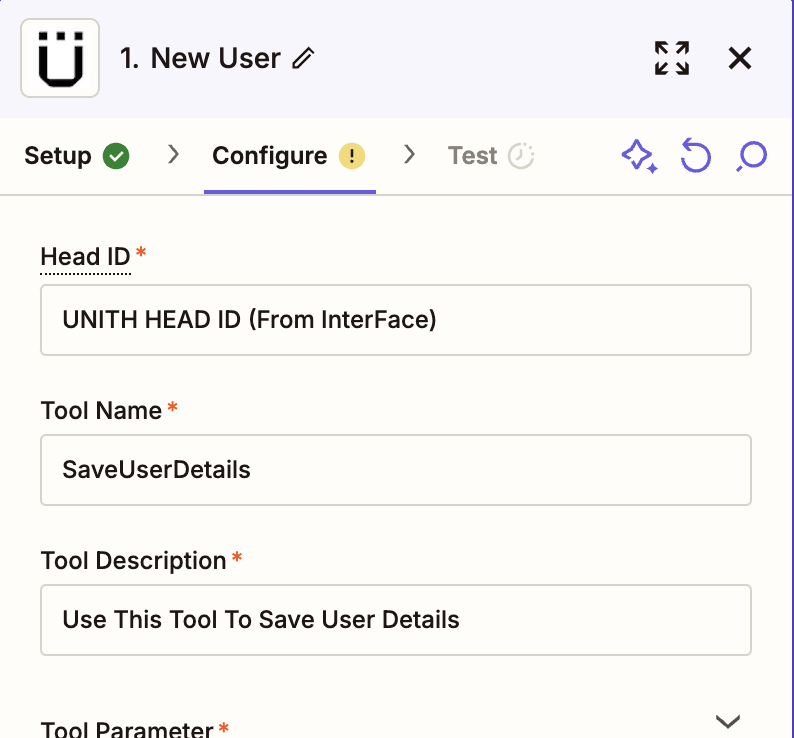
- Tool Description - This works like a prompt and tells the Tool what to do. "Use This Tool To Save User Details."
- The "Tool Parameter" refers to the data collected by the Digital Human. These can reflect the header fields of the Google Sheet or Map to fields in HubSpot.
- This must also be configured within the Digital Human Prompt to ensure the Digital Human asks these questions.
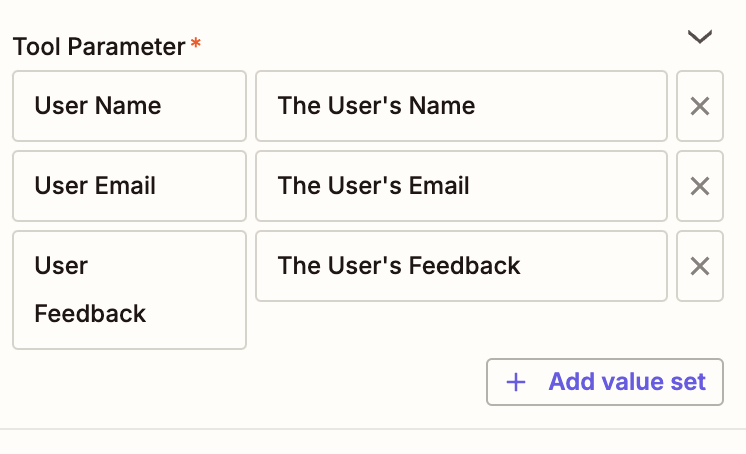
Ensure that the fields are properly aligned with the target application

The info will be automatically input into your app. If you need to capture additional details, simply click "Add Value Set" to include more fields.
Test and verify
The action to verify the correct execution. If everything is correct you will receive a green tick next to Setup, Configure and Configure.
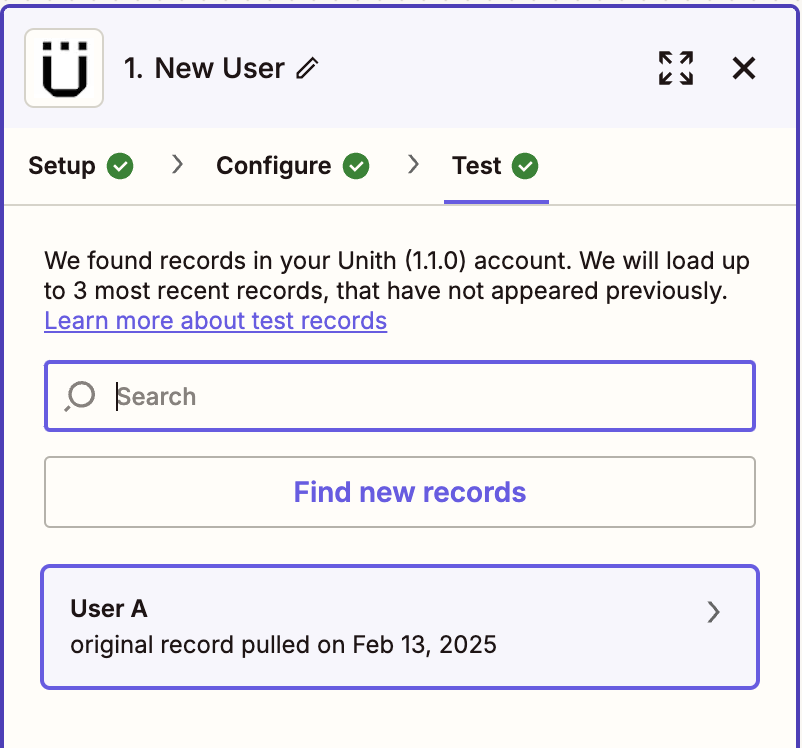
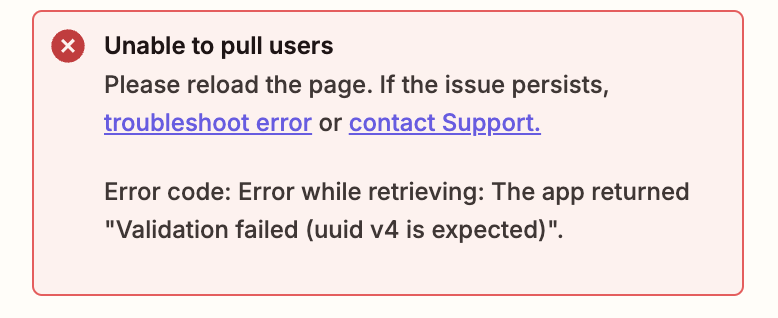
You'll receive an error message if the tool doesn't work as expected. Please double-check your information, and if you're still having trouble, contact support@unith.ai for help.
Connect The App

Click the Action button and select your chosen app as your connection. If you need to connect to a different app, we support additional integrations such as HubSpot.

Action app
Select the action for example: Create Spreadsheet Row

Connect The Drive
Connect the drive in this example a Google Drive, Spreadsheet name, Worksheet (Tab)

Depending on the action selected you may need to map the fields. The example flow is for Create Spreadsheet Google.

Test Step

Ensure that the record pulled contains variables with (randomX), rather than variables with actual values (Kushmohan) for example. Otherwise, when executing the flow, it will always repeat the same variable used in the previous step
And finish with Publish

